Installing wireless on Linux Ubuntu or Mint
Installing RT5370
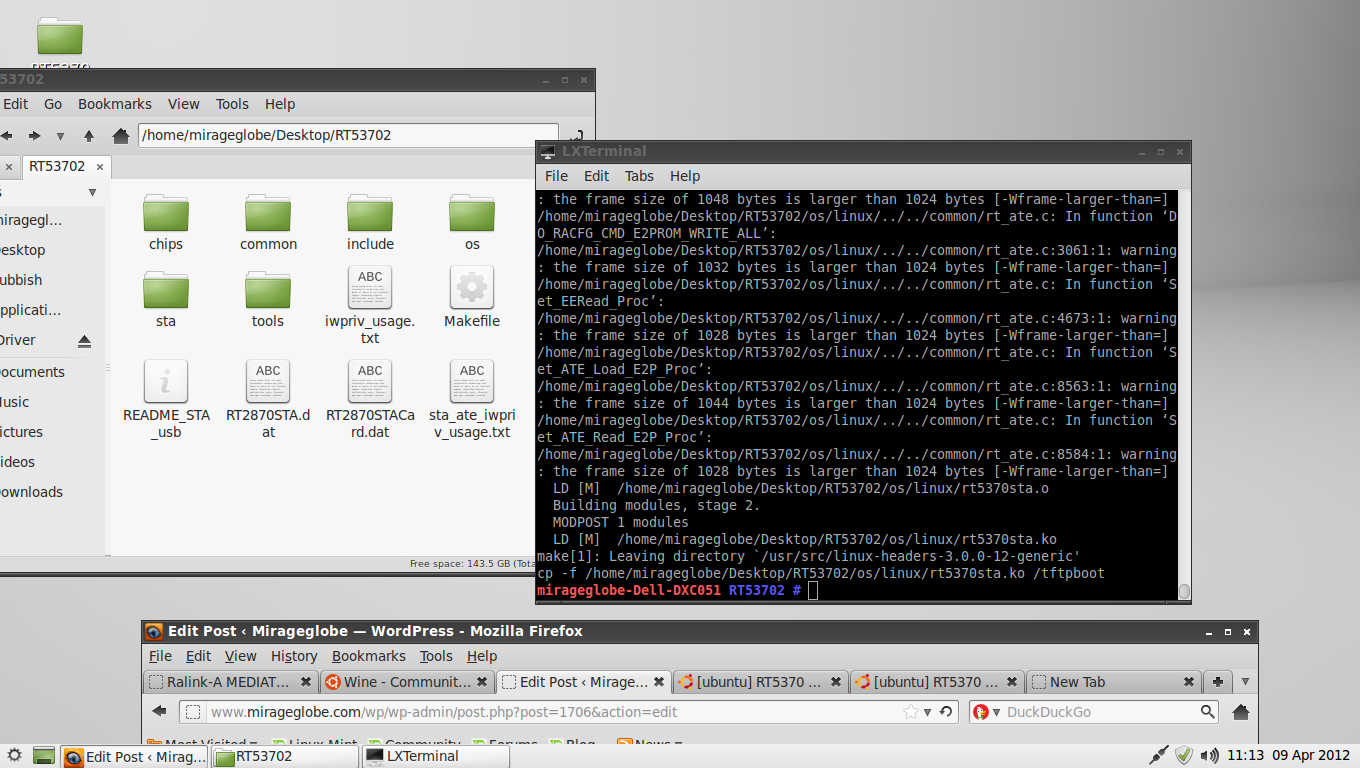
RT5370 is a very small usb wireless wifi transmitter. It comes with a default windows driver, which is unfortunate if you have linux installed. To enable this usb wireless transmitter just follow these steps. I hope it helps someone as it was quite problematic for myself.
- goto http://www.ralinktech.com
- (actual drive page: http://www.ralinktech.com/en/04_support/support.php?sn=501
- Download the RT5370 usb driver and extract on desktop
- Open Terminal
sudo apt-get install build-essential
sudo su
make
make install
modprobe rt5370sta
exit
– or –
sudo apt-get install build-essential
sudo su
make clean
make
modprobe -r rt5370sta
modprobe rt5370sta
exit
Installing Dell 5150c
Installing Dell 5150c wireless 1450 Ubuntu 11.04 or later. This guide will help you install a wireless device which cannot be recognised by ubuntu / lubuntu by default. The wireless device may only have a windows driver which is enough to get you setup.
- Make sure you have a wired connection to the router
- plug in the machine to get internet access
- install wine on ubuntu by apt-get install wine
- download drivers from support.dell.com (R138111.exe)
- install ndiswrapper-common, ndiswrapper-utils, ndis-gtk (you have to download the .deb files and install them manually)
- run the installation file R138111.exe and it should install (with errors)
Extracting the INF files
- open terminal and go to ~/.wine/
- you should see a C drive. Go to program files/dell drivers/2k (cant remember the whole path but its somewhere there.)
- zip the whole folder 2k by using (sudo zip 2k 2k.zip -r)
- copy the zip file to desktop
- install and launch ndiswrapper (all of them)
- launch ndiswrapper gui and add the new INF driver
- bingo it should work.
For Lubuntu Users you might notice that the network manager does not automatically start (LXNM does not start automatically). Please follow the following steps:
- open terminal and enter sudo apt-get install build-essential
- sudo nano /etc/modules and add in ndiswrapper in the last line
- open terminal and enter sudo ndiswrapper -l
- you should see your wireless network installed (if not refer to above)
- type sudo ndiswrapper -m
- type sudo ndiswrapper -ma
- type sudo ndiswrapper -mi
- type sudo rmmod ndiswrapper && sudo modprobe ndiswrapper
- once you reboot, it should now automatically connect you.
if you hate LXNM (default network manager for lubuntu), i suggest you install wicd (http://wicd.sourceforge.net/)
- sudo apt-get install build-essential
- sudo apt-get install wicd
Other notes:
In my case, i had to set the router settings to WEP Open System (64bit). I know it not secure, but this is to get over some detection settings.
references:
- https://help.ubuntu.com/community/WifiDocs/Driver/Ndiswrapper
- http://www.bgevolution.com/blog/ndiswrapper-ubuntu-wifi-in-4-easy-steps/
- http://forum.lxde.org/viewtopic.php?t=81&f=6