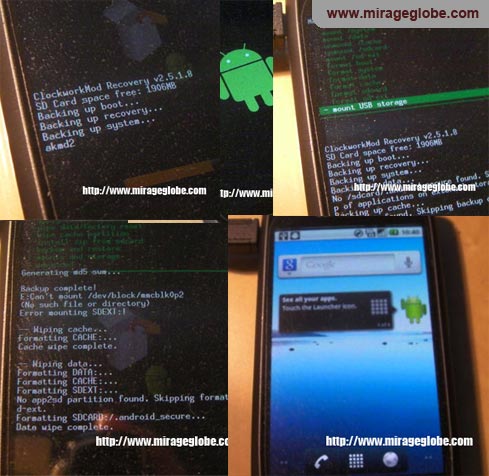
Unlocking and Flashing your ZTE Blade
Introduction
This Unlocking ZTE Blade Orange San Francisco to Gingerbread 2.3 Guide is tested with Mac OSX. Windows also work similarly, please let me know about your experiences. Follow the instructions carefully. There are chances your phone might be bricked but so far i havent heard of such instances. Even though you will be able to unbrick your phone.
ZTE Blade (China) is known as Orange San Francisco (UK), Dell XCD35 (India), SAPO a5 (Portugal) or V880 ZTE. As of May 2011, the newer version of this model is out, called ZTE Skate also known as Orange Monte Carlo. ZTE blades now have gen1, gen2 or gen3 phones.
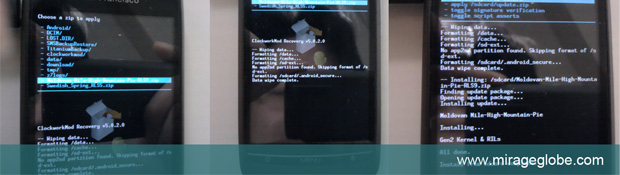
Popular List of Roms
SwedishSpring RLS 5 (Froyo 2.2) – HereReplaced with Swedish Snow RLS 7- Cyanmodgen (Gingerbread 2.3) – Here
Moldovan Mile-High-Mountain-Pie RLS9 (Gingerbread 2.3) – HereReplaced with Swedish Snow RLS 7GSF Ginger StirFry (Gingerbread 2.3) – HereNo longer maintained- Swedish Snow RLS 7 – Here
Part 1: Unlocking your phone (Orange San Francisco 1 NOT 2)
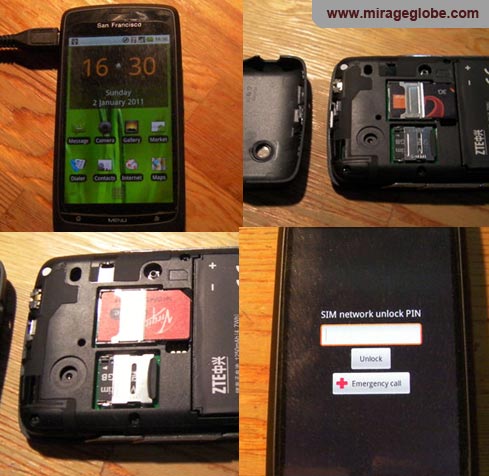
- Visit http://arrtoo.x10.mx/unlockBlade.php
- Get your imei number from the box (a long character) or dial *#06#
- Turn off phone
- Take off the base cap of the phone (flip phone over and use flat wooden/plastic ruler in the gap below, and slide to the right, and twist slowly)
- Take off battery and put in new sim from another mobile company
- Turn on and enter code (Do this carefully). Congrats
Part 2: Knowing which model you have
- Go to android marketplace and download the app “Ask Mr Pig Fish”.
- Run the app the find out if your ZTE Blade is Gen1 or Gen2 or Gen3
- Proceed if you are Gen1 or Gen2.
Part 3: Using Clockwork Mod Rom Manager
Search for UniversalAndRoot.apk and copy it onto your SD cardUse AstroFile (from google marketplace) and open UniversalAndRoot.apkUse UniversalAndRoot to root your mobile- Search for Clockworkmod RomManager on google market place (logo looks like a hat) and install.
- Install the app and install clockworkmod to your mobile. (its the first option)
- Proceed to Part 4
Download 2 files: (1) Stable update-cm….. (2) Google Apps for Cyangenmod 7Refer to http://wiki.cyanogenmod.com/ (if you have problems)
Part 4: TPT install Method – (*upgrades Gen2 from Gen1)
– Option A: TPT install Swedish Snow RLS7 (2.3.5) * Recommended
- goto Swedish Snow Download
- download the RLS7 normal version image file.
- Unzip the file and you will find a folder named “image”
- Connect your mobile via usb to your machine
- Copy the image folder to the root of your mobile
- Turn off the phone
- Turn on the phone while holding the “+volume (side of your mobile)” and menu button
- Wait for it to do its job with the green text. and you are done. it will take about 4-5 minutes for all process to finish.
– Option B: Changing Cyanmodgen (2.3) to Swedish Snow RLS7
- goto http://www.modaco.com/topic/350875-romgen2-swedish-snow-rls7-android-235/
- download the RLS7 normal version image file.
- Unzip the file and you will find a folder named “image”
- Connect your mobile via usb to your machine
- Copy the image folder to the root of your mobile
- Turn off the phone
- Turn on the phone while holding the “+volume (side of your mobile)” and menu button
- Wait for it to do its job with the green text. and you are done. it will take about 4-5 minutes for all process to finish.
Mirrors of Swedish Spring 81.7mb: http://www.megaupload.com/?d=WQIZ0GVN
FAQ
– Why so some guides say hold volume down button?
Yes. holding volume down button and pressing power button once. Keep holding the volume down button until some text appears. This will bring you in the reset mode. You can then mount USB connection and copy xxxxxxx.zip files (images of the above) and then install it via the menu. Remember to wipe Dalvik Cache and Wipe Data.
An interesting mod Ginger StirFry is out for ZTE Blade which is based on 2.3. Good reviews so worth considering. The following method is to update without TPT. It uses RomManager to update
- goto http://android.modaco.com/topic/342009-romgen2zte-gingerbread-ginger-stir-fry/
- download the RL5 normal version image file.
- place the downloaded image file in your root of SDcard
- Open clockwork rom manager and flash it with the new image file